
Import INET to OMNeT++
 Gatsby
INET Framework is an open-source model library for the OMNeT++ simulation environment. INET contains models for the Internet stack (TCP, UDP, IPv4, IPv6, OSPF, BGP, etc.), wired and wireless link layer protocols (Ethernet, PPP, IEEE 802.11, etc), support for mobility, MANET protocols, DiffServ, MPLS with LDP and RSVP-TE signalling, several application models, and many other protocols and components. Several other simulation frameworks take INET as a base, and extend it into specific directions, such as vehicular networks, overlay/peer-to-peer networks, or LTE. This article will explain the process of importing INET into OMNeT++, as well as how to create a new project based on INET.
Basically all INET version can be find on INET Download, download the INET which is compatible with your OMNeT++.
Importing INET
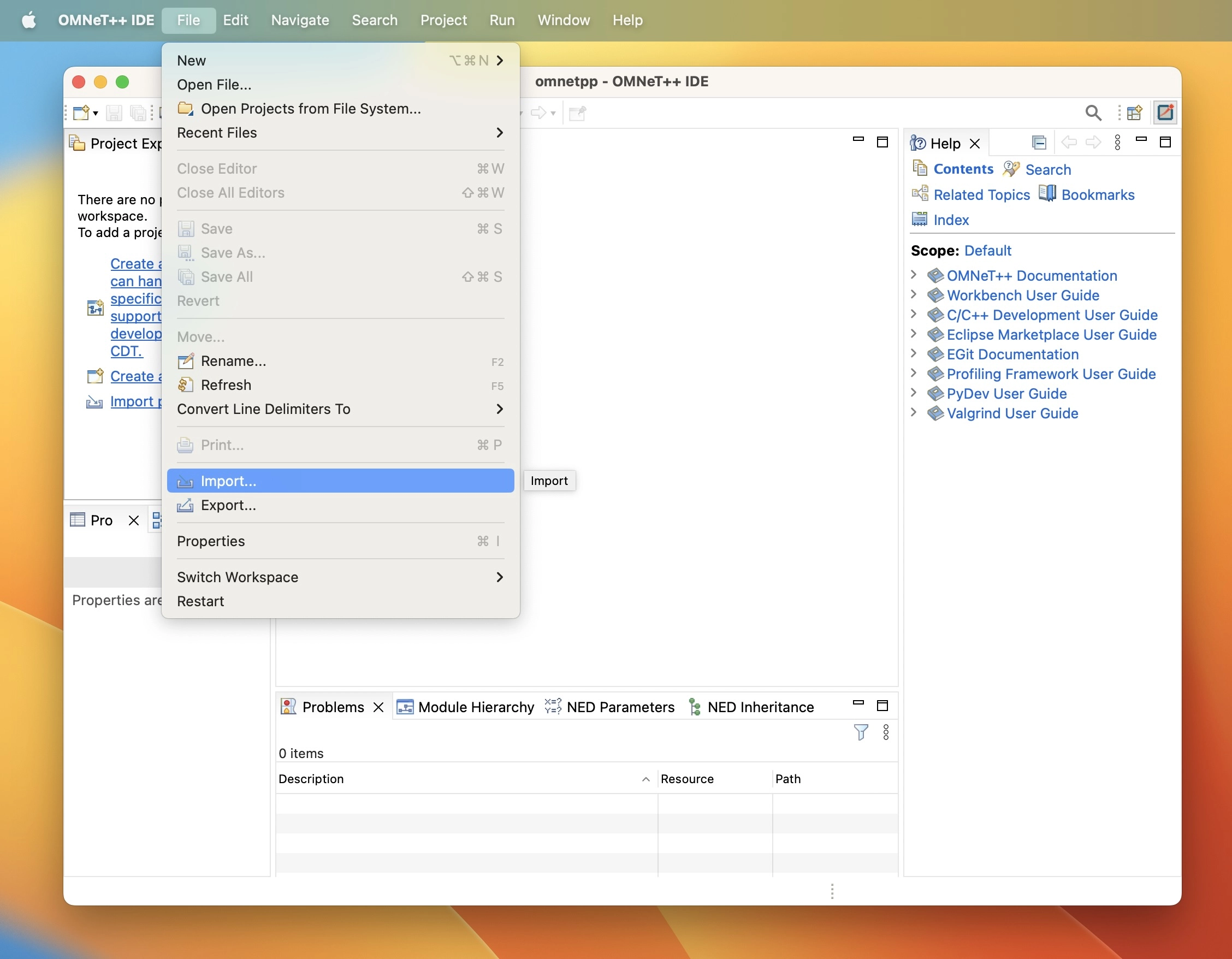
INET itself is an OMNeT++ project, importing it into OMNeT++ is no different from importing any other OMNeT++ project. In the OMNeT++ IDE, go to the “File” option and click on “Import” to initiate the project import process.
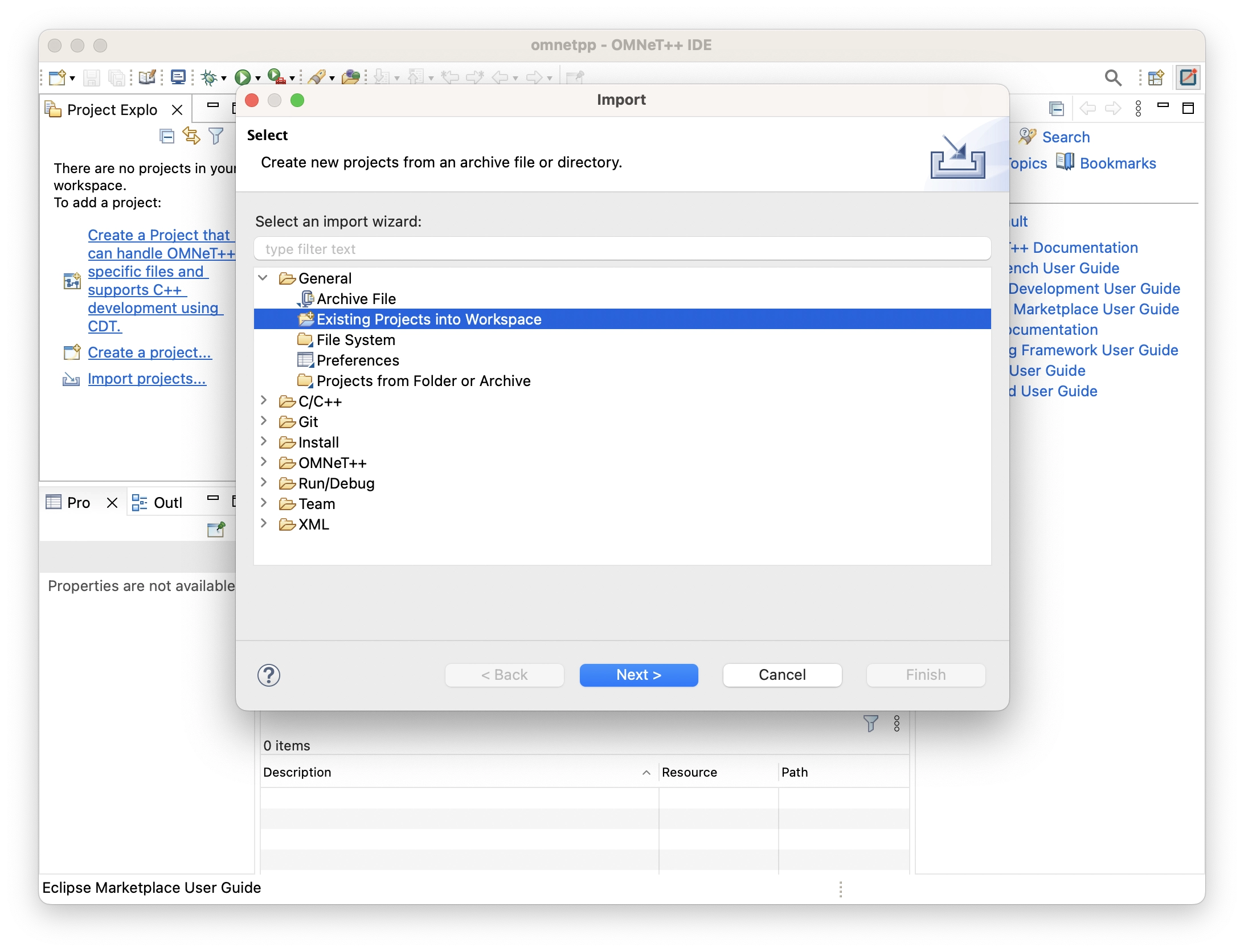
On the “Select” page, choose “Existing Project into Workspace” under the “General” category.
OMNeT++ Import Type Select On the “Import Projects” configuration page, for the downloaded INET, which is in a compressed tar ball, select “Select archive file” and click “Browse…” to choose the INET tar ball, if the project is a folder, choose “Select a root directory…” and click “Browse…” to locate the folder path. In the “Projects” section, select the INET project, and if you import the project a an folder it is recommended to check the “Copy project file into workspace” for better management. Finally, click on “Finish” to complete the importing process.
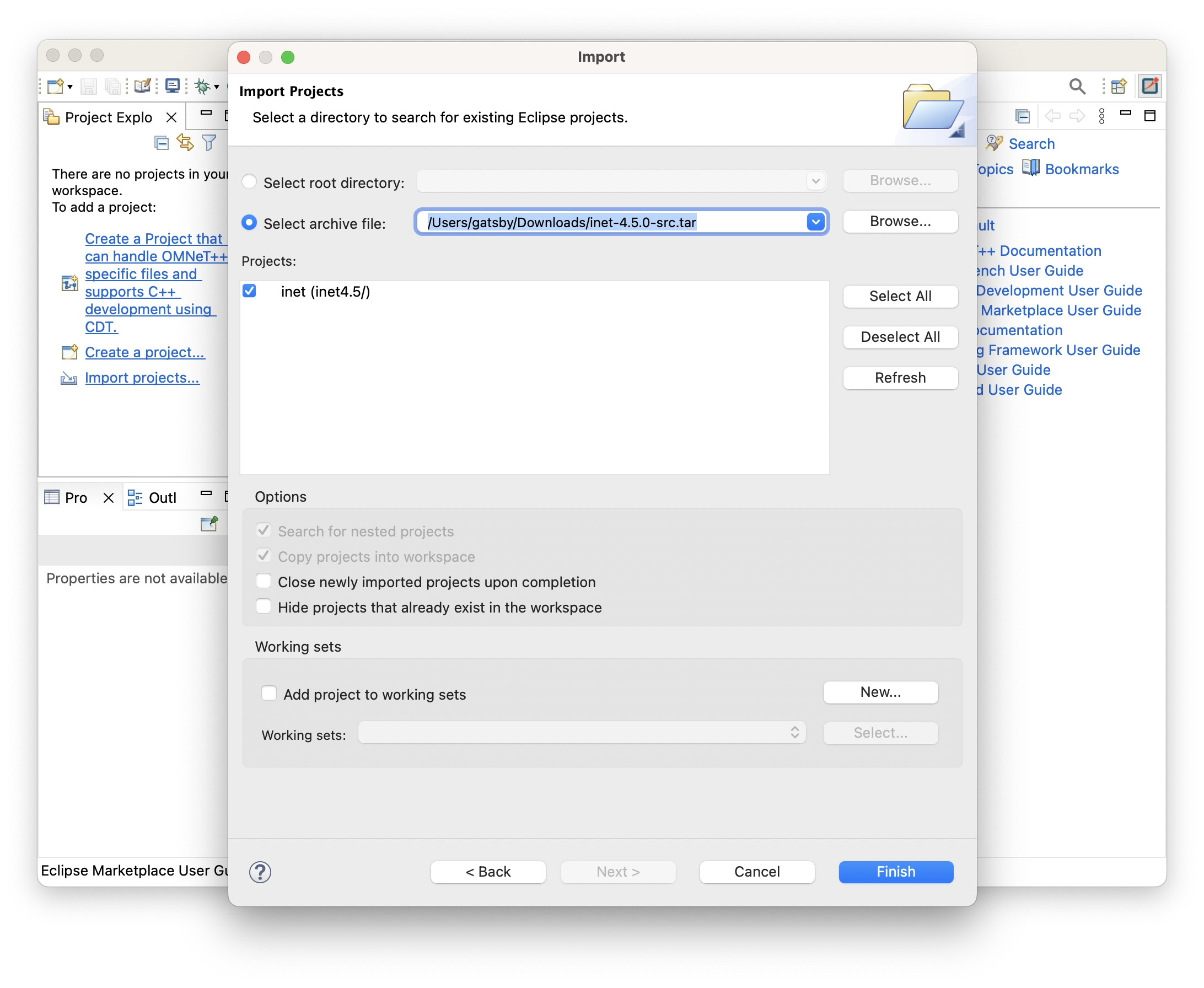
OMNeT++ Import Configuration - 1 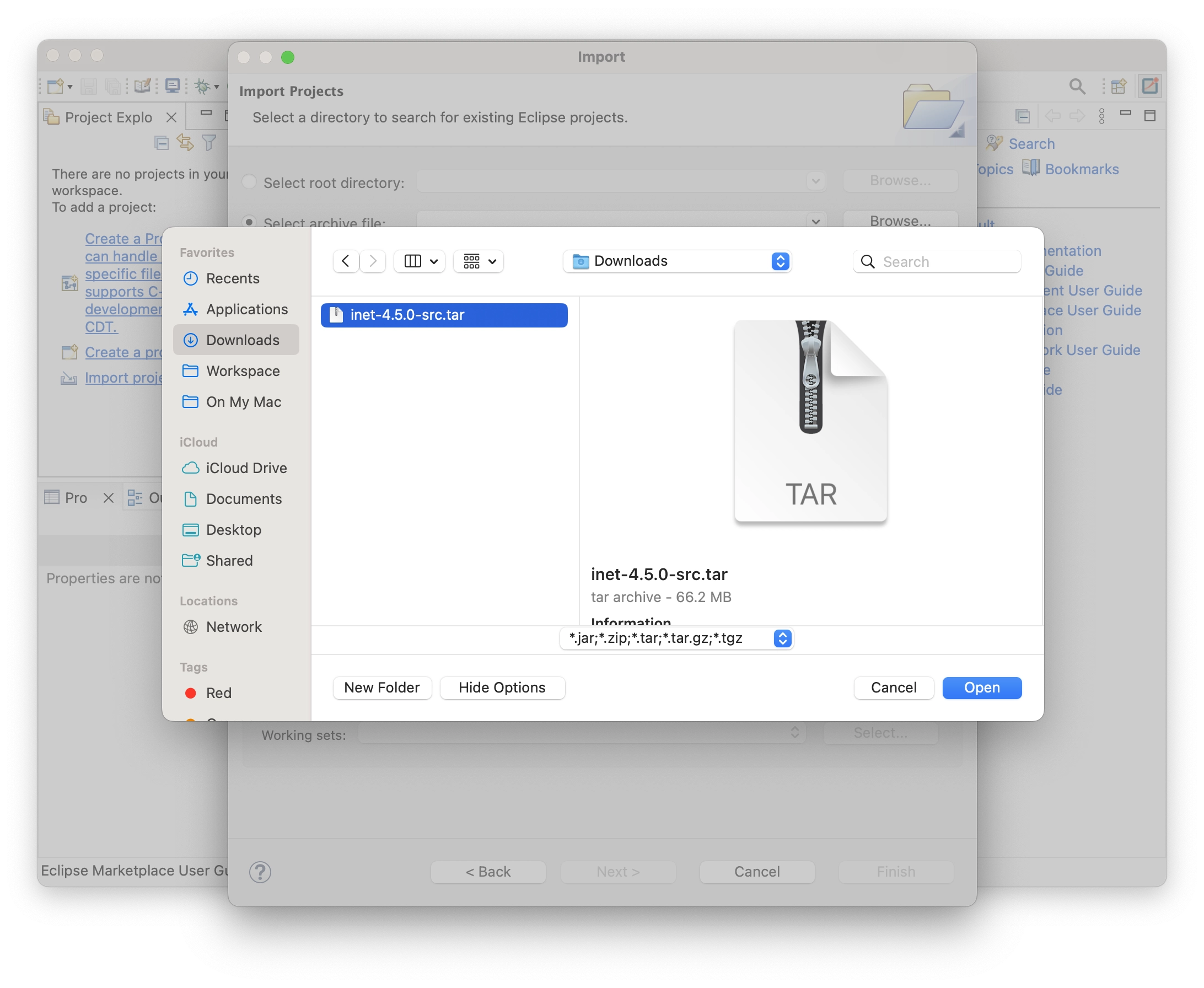
OMNeT++ Import Configuration - 2 After importing, right-click on the project and select “Properties” to open the project’s property configuration page. In “Project Feature” section, you can customize the features of the INET. You can uncheck unnecessary modules and check the ones you need. For instance, to enable real network emulation functions, check the “Network emulation support” option (only supported on Linux). By default, “Visualization OSG (3D)” and “Visualization OSG (3D) showcase” are not checked. Enabling these features requires compiling and installing OpenSceneGraph functionality in OMNeT++, these two need to be checked if you need 3D visualization environment.
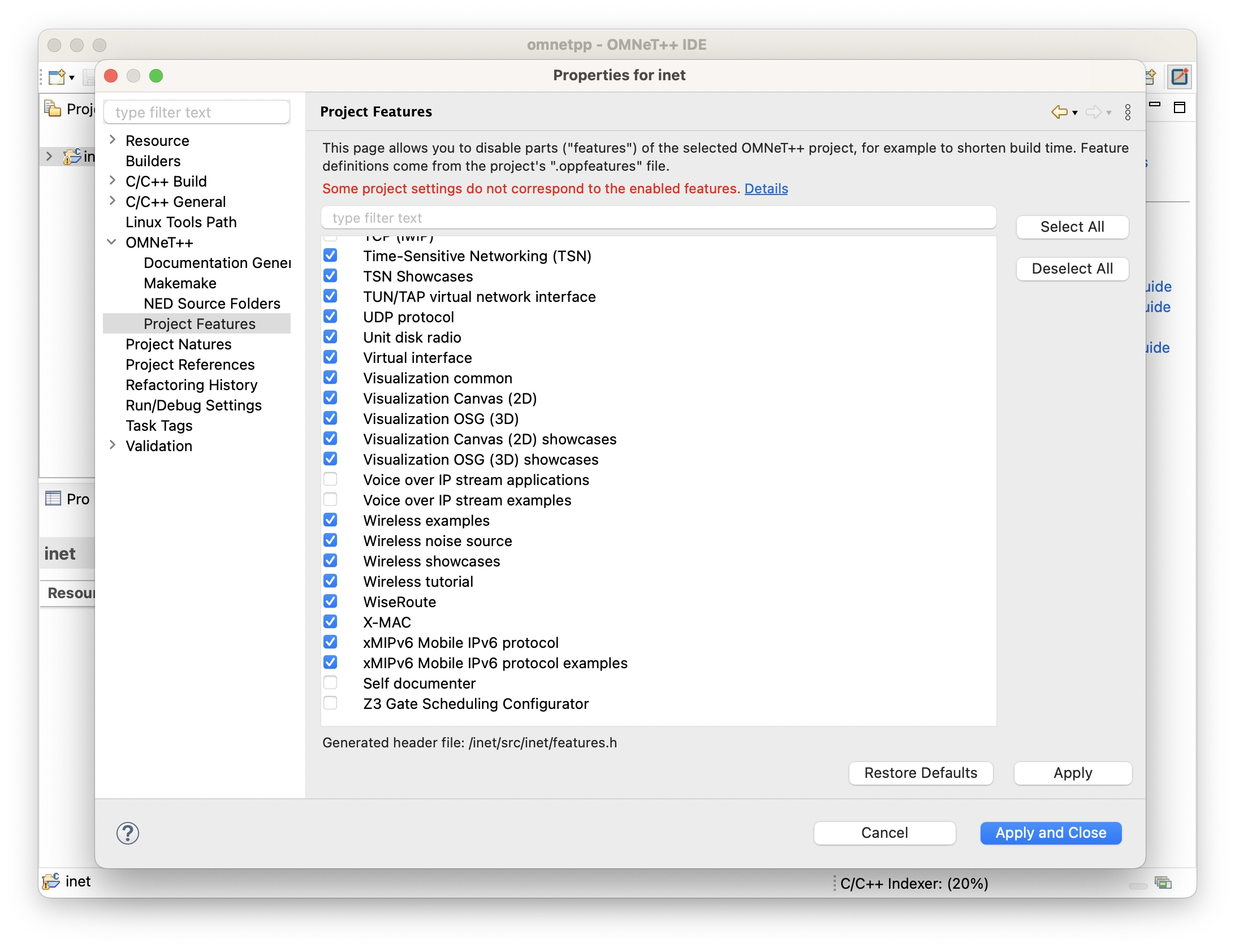
INET Feature Configuration After configuring, save the configurations and close the project properties window. Right click the project and select “Build Project” to compile the project. Please be patient and wait for the compilation process to finish.
INET is compiled by default in “Debug” mode, but simulations runs faster in “Release” mode. The IDE will ask you to compile a “Release” version for better performance when you run (not debug) simulations, we can do it in advance.
Right-click on the project -> Build Configurations -> Set Active -> release.
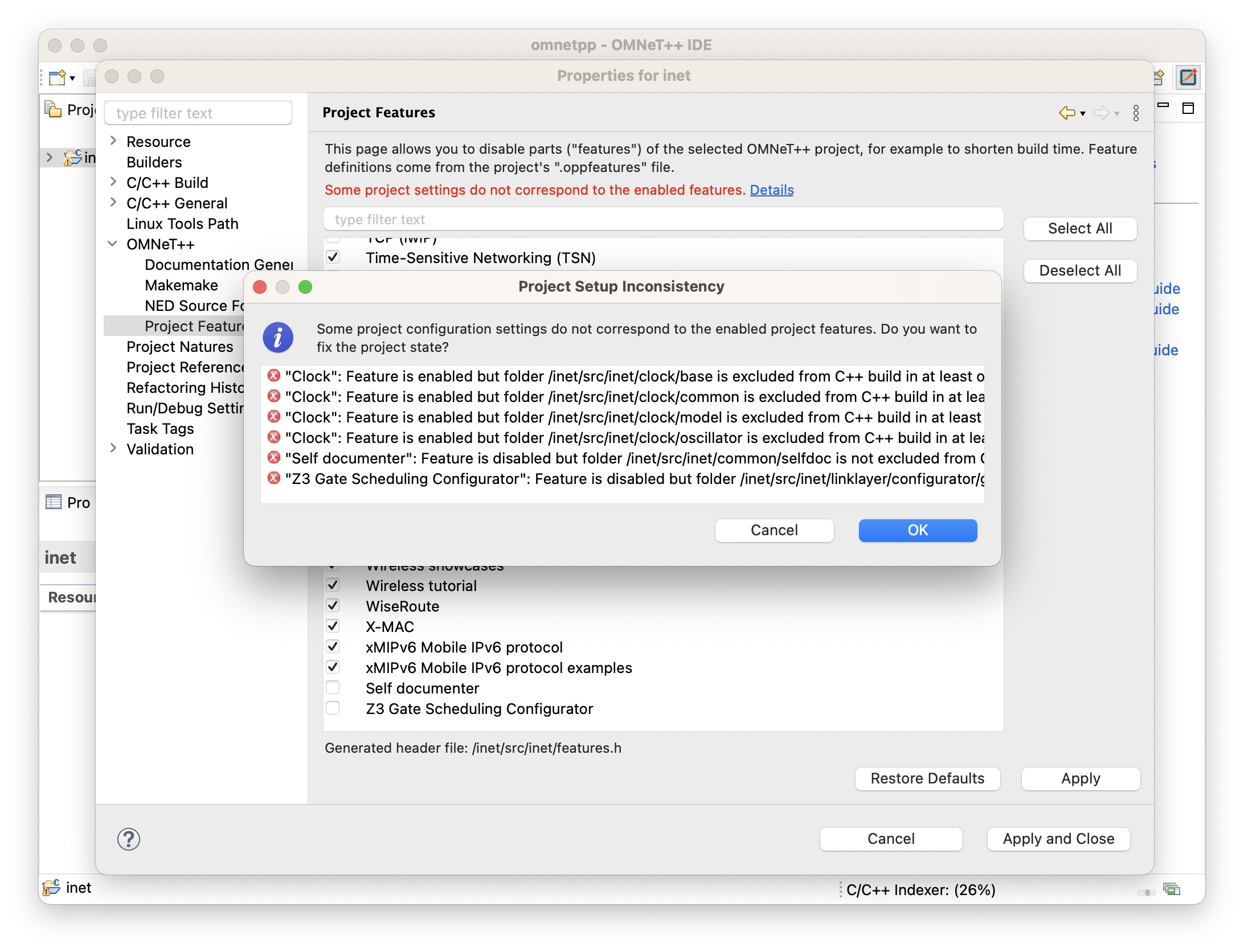
You may encounter the following error while modifying INET features or compiling INET. The error indicates that the current feature configuration does not match the configuration in “NED Source Folders” and “Makemake”. You can simply click “OK” to automatically fix it.
Create a New Project Based on INET
Create a New Project
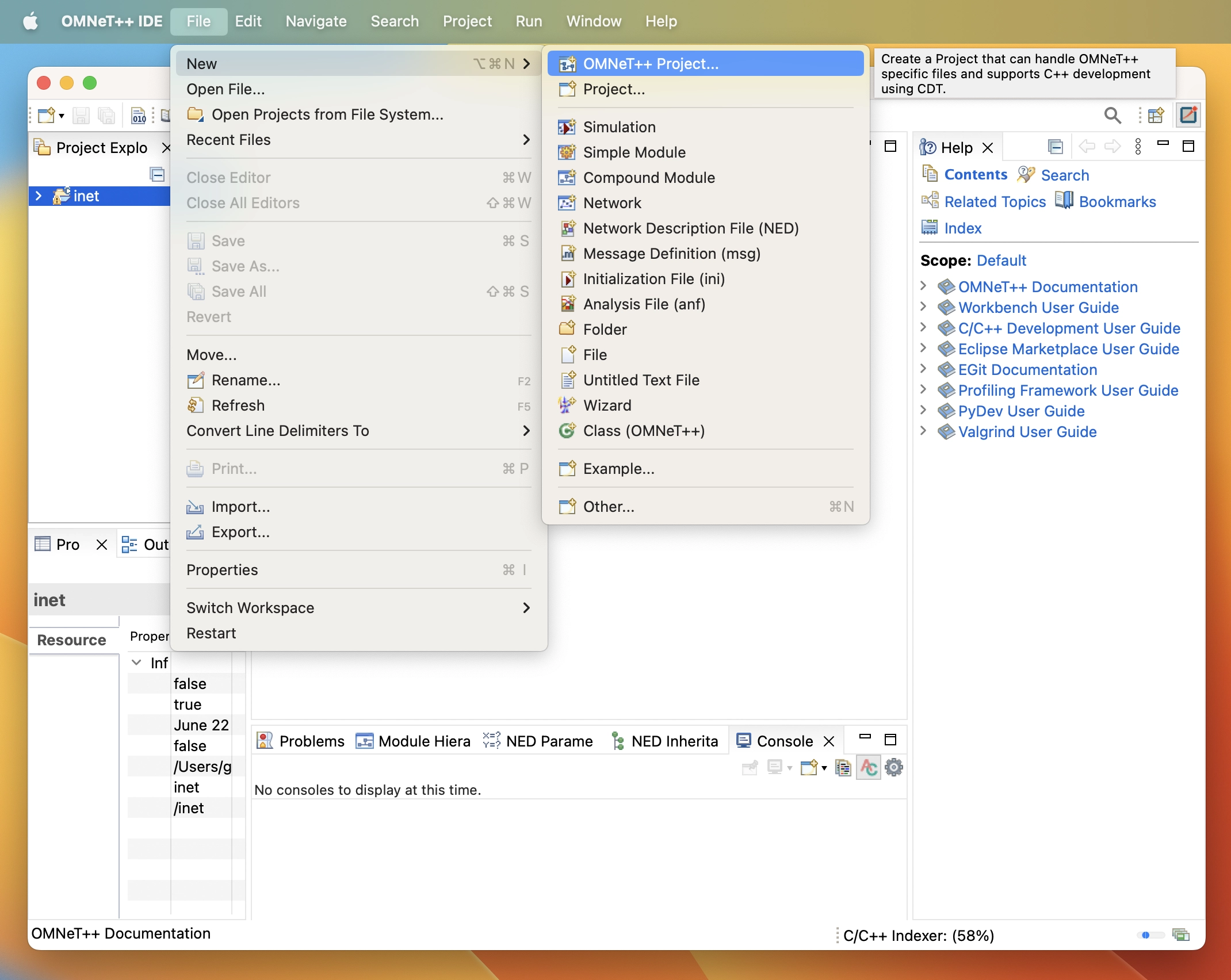
Click on “File” in the top right corner, then select “New” followed by “OMNeT++ Project…” to create a new OMNeT++ project.
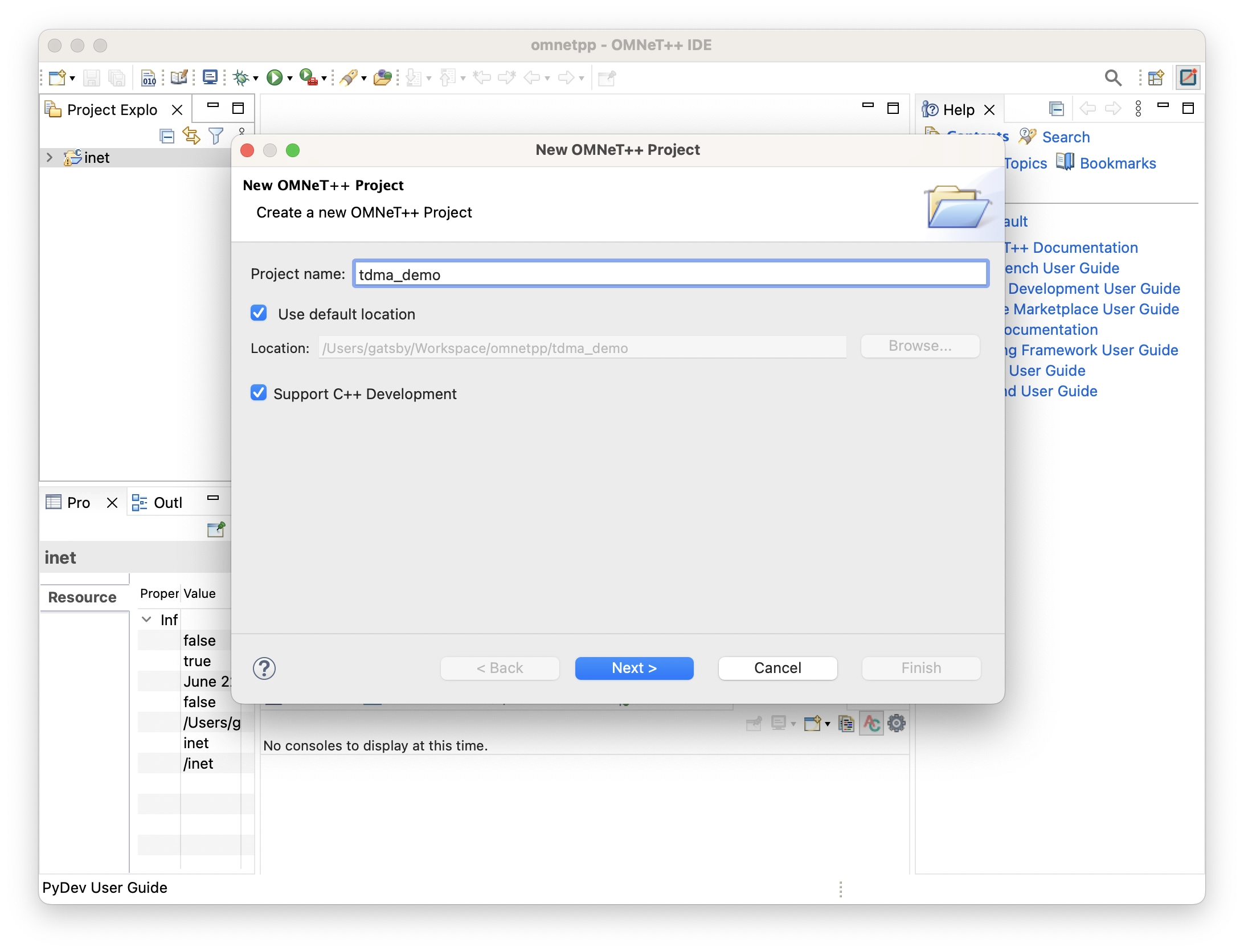
In the “New OMNeT++ Project” page, provide a name for the project.
OMNeT++ Name Project In the “Initial Content” interface, there are two options to choose from for the project type:
- “Empty project”: This option creates a basic project structure without any predefined folders or files. If you only intend to use existing INET modules without writing new C++ modules, you can select this option.
- “Empty project with ‘src’ and ‘simulations’ folders”: This option includes the ‘src’ and ‘simulations’ folders in the initial project structure. The ‘src’ folder is used to store C++ module source code,
.msgmessage definition files, and.nedfiles associated with C++ modules. The ‘simulations’ folder is typically used to store simulation configuration.inifiles and.nedfiles that describe the network topology. If you have requirements that involve writing new modules in C++, you can choose this option.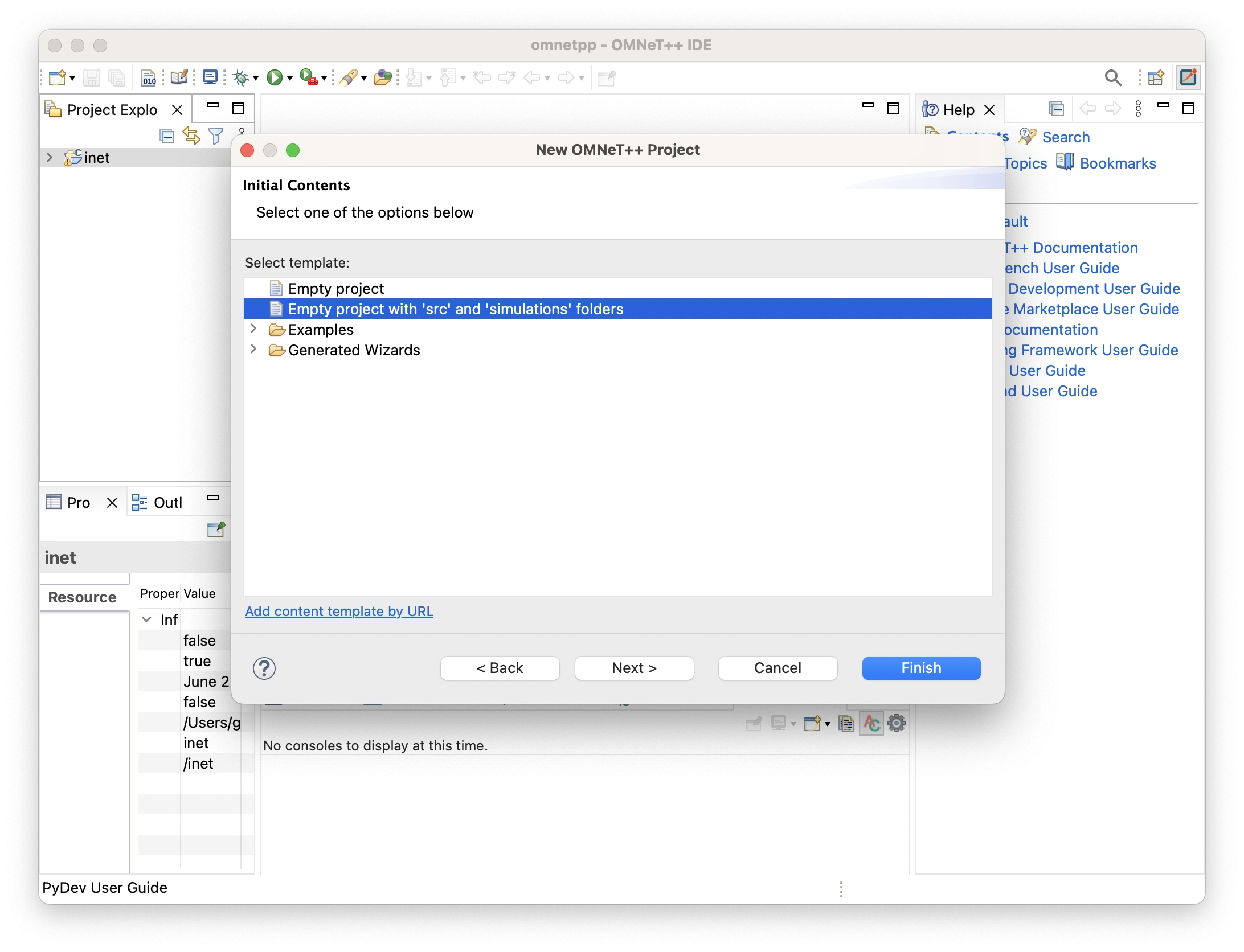
OMNeT++ Content Select
In the “C++ Project Type” page, you can select the project type and the toolchain to be used. It is recommended to keep the default settings in this step.
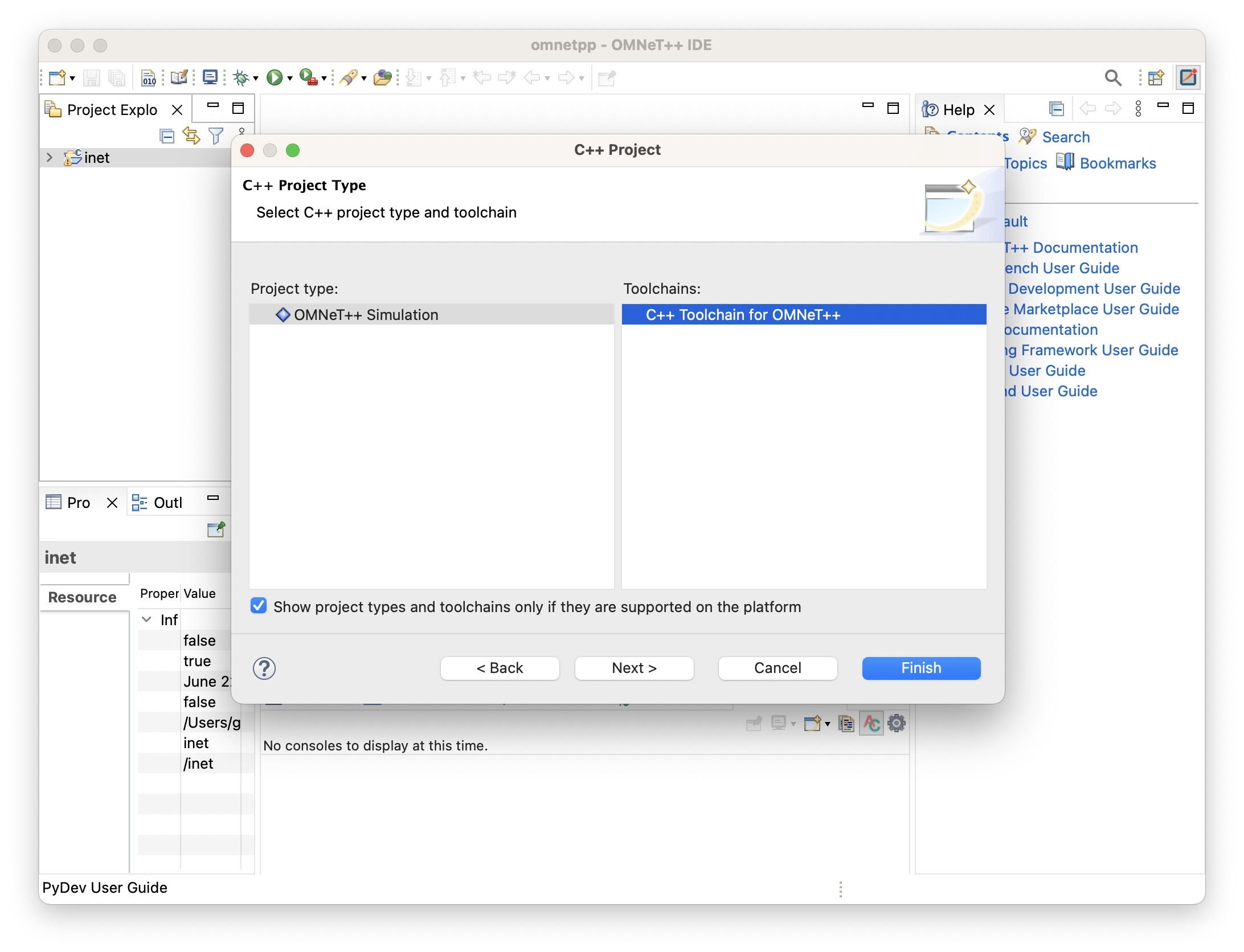
OMNeT++ Project Type Select In the “Select Configurations” page, you can custom the build configurations. There is no need for additional configuration, so you can simply keep the default settings.
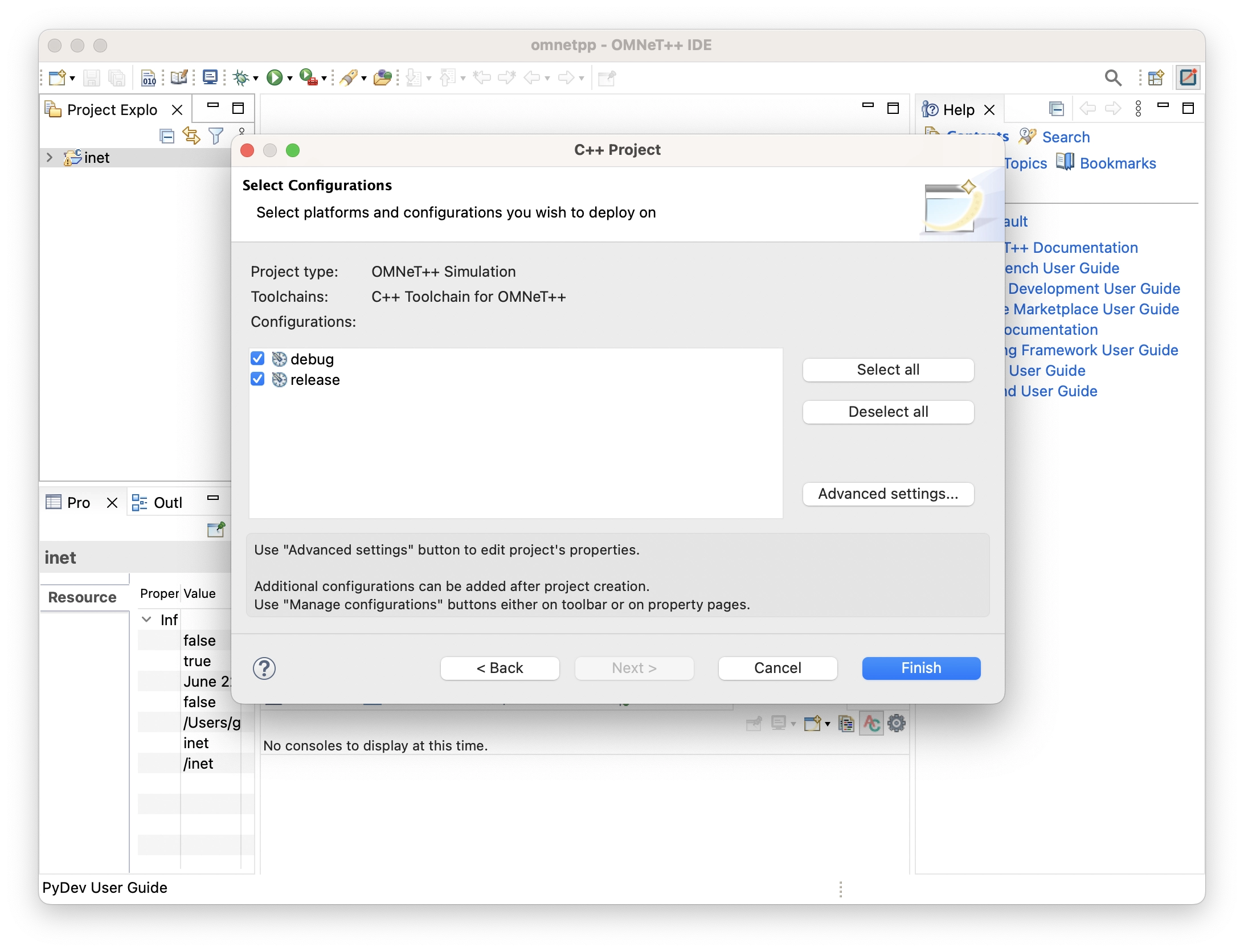
OMNeT++ Compile Configuration Click “Finish” to complete.
Project Configurations
If you do not need to use the INET framework, you can proceed directly with writing simulation code. However, if you intend to use modules from the INET framework, further configuration of the project is required. Right-click on the newly created project in the “Project Explorer” and select “Properties” to open the project’s property configuration page.
Check “inet” under “Project References”. If you don’t need to modify or extend the C++ modules of INET for your simulation, it is sufficient for your simulations.
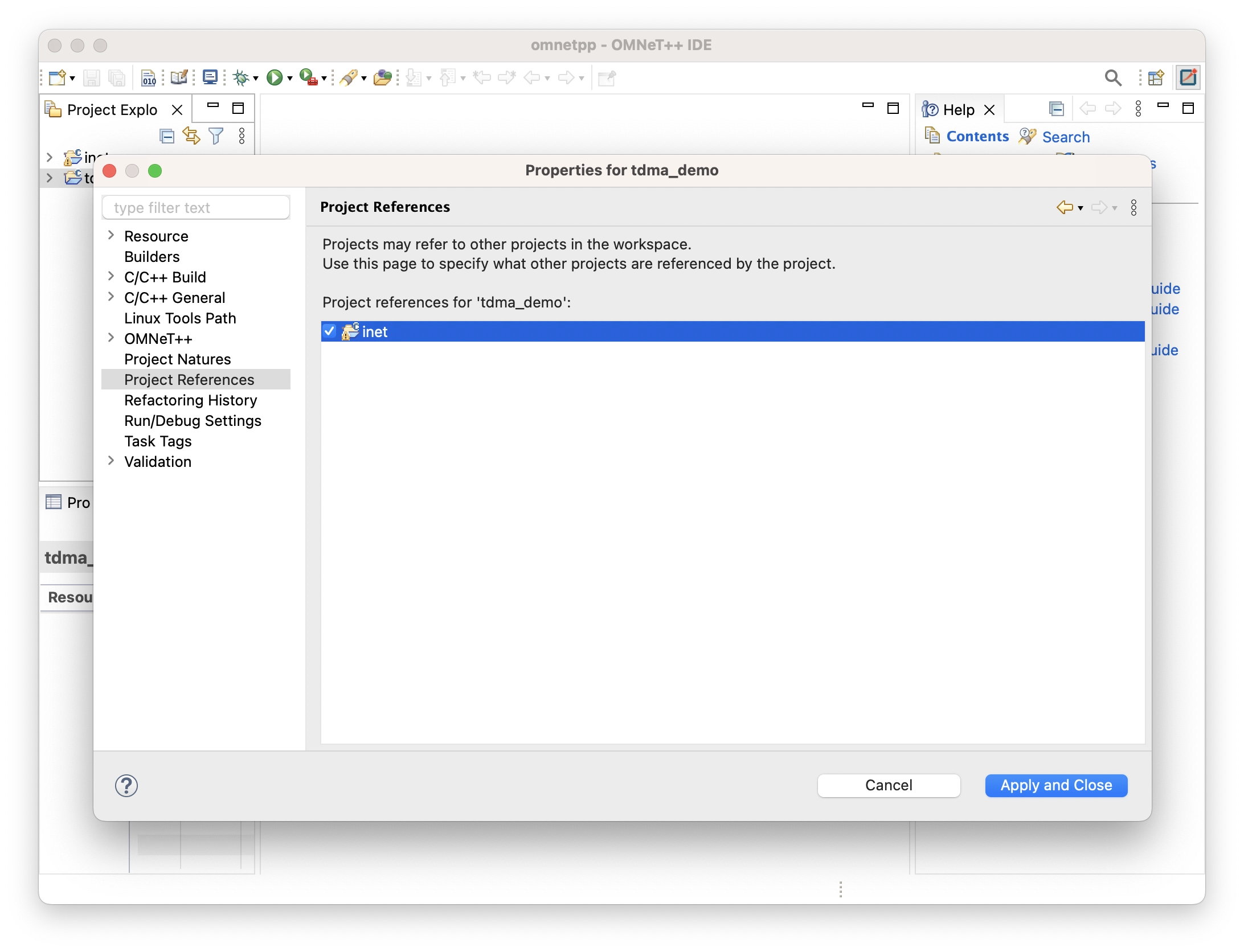
OMNeT++ Project Reference If you need to write new C++ code based on some modules of INET, additional settings are required. In the project properties configuration page, locate “OMNeT++” and click “Makemake”. Select “src: makemake…” on the right and click “Options…”.
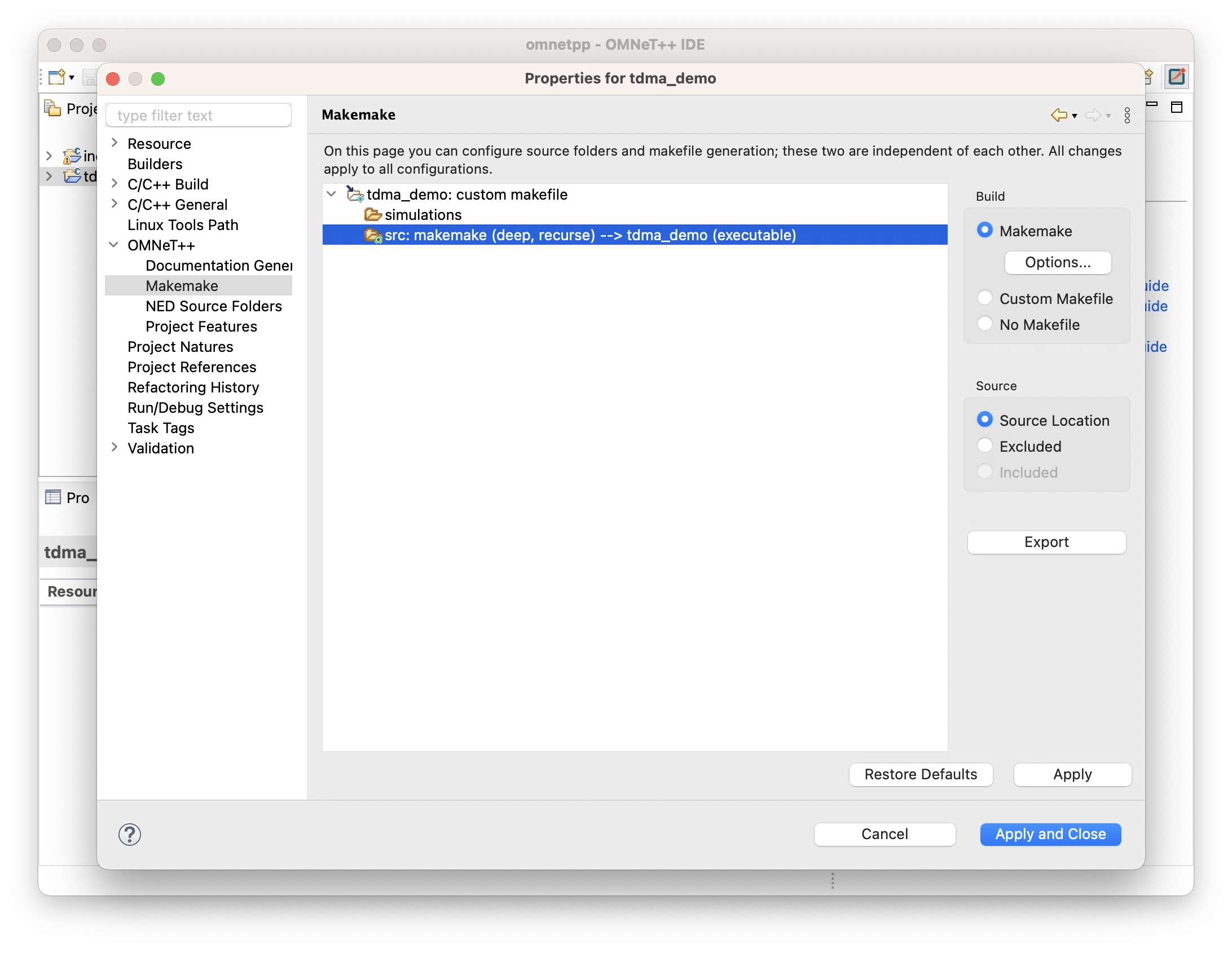
OMNeT++ Project Makemake Options Modify the settings in the “Compile,” “Link,” and “Custom” sections as shown in the following images.
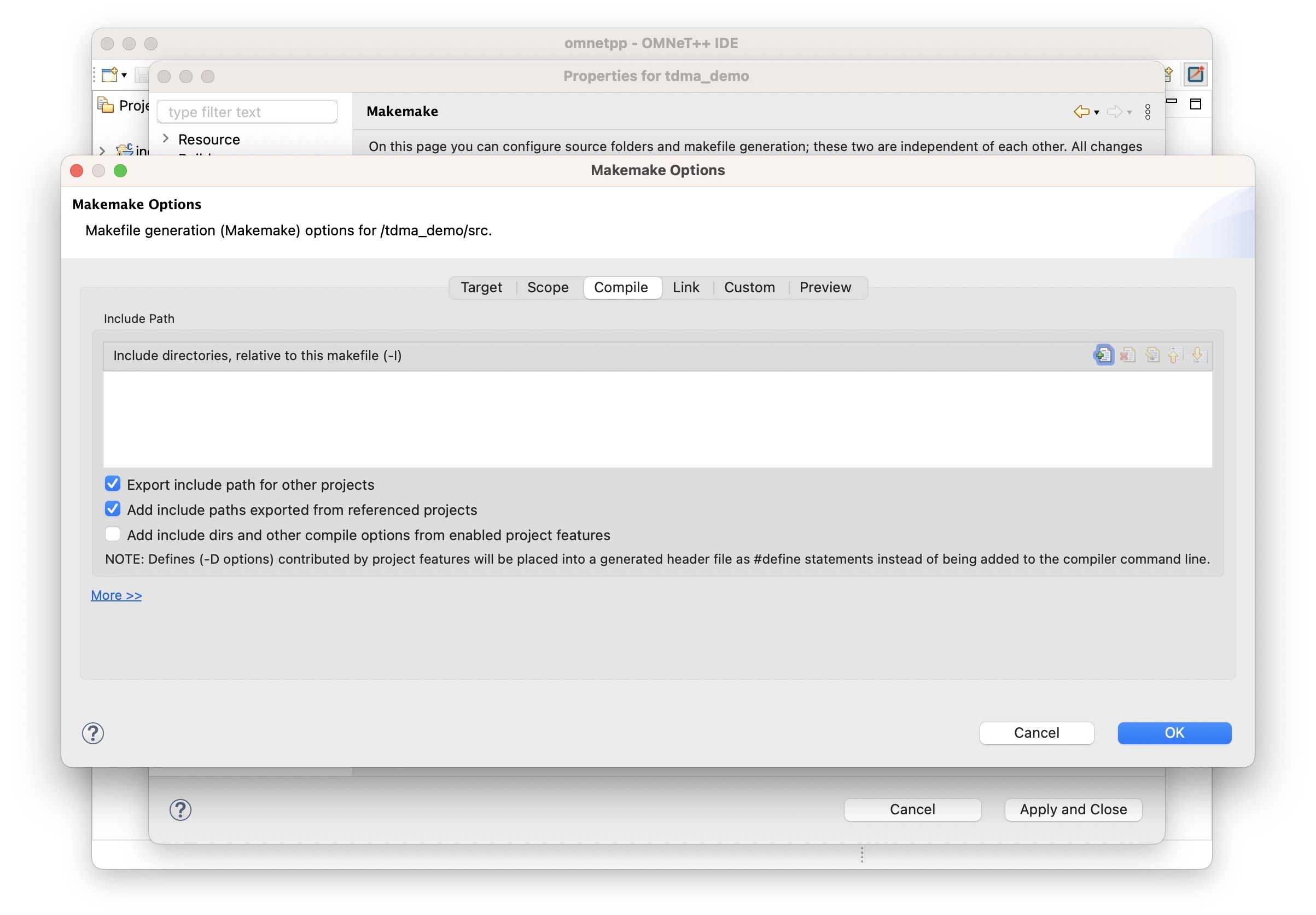
OMNeT++ Project Makemake Compile Settings 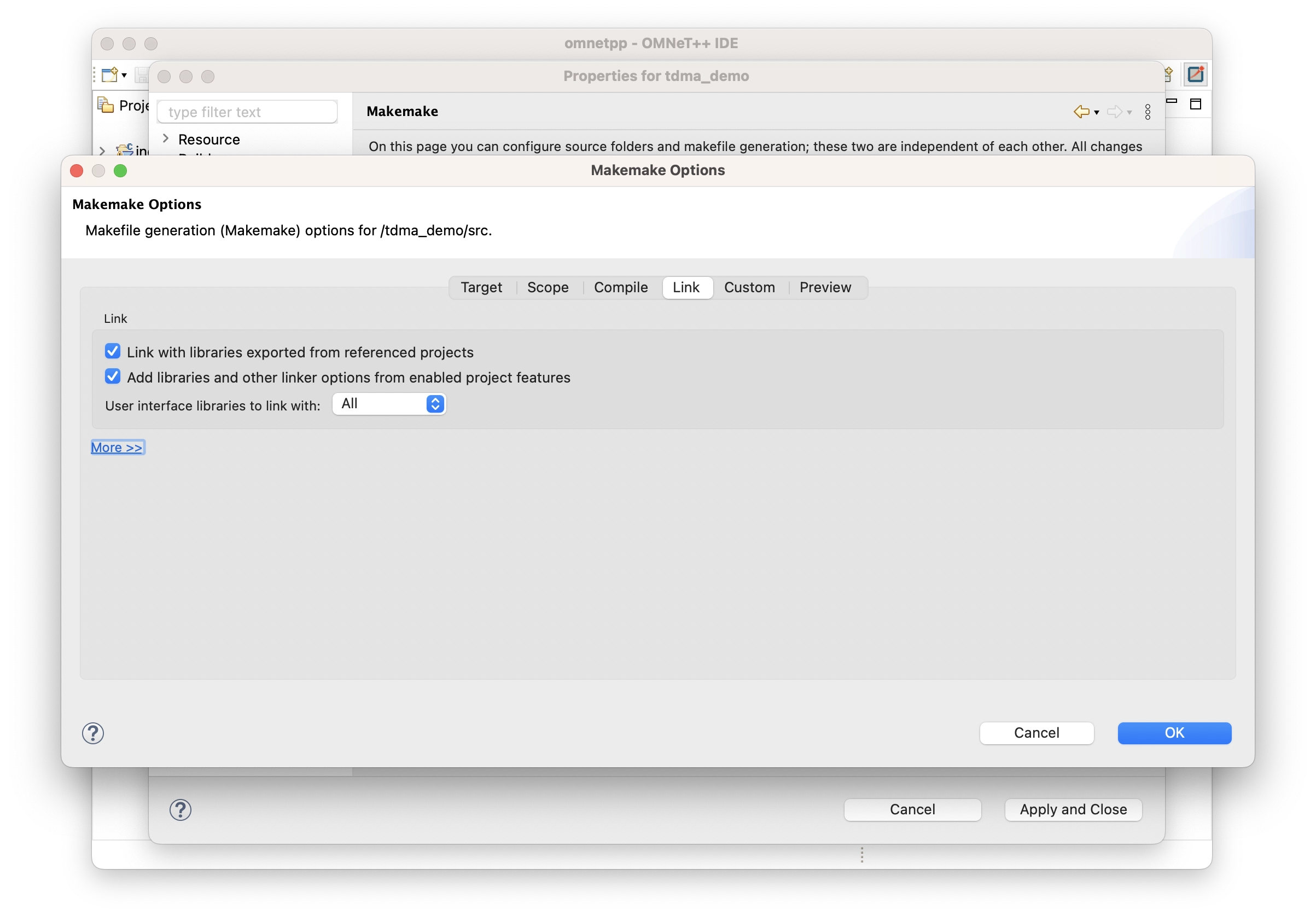
OMNeT++ Project Makemake Link Settings 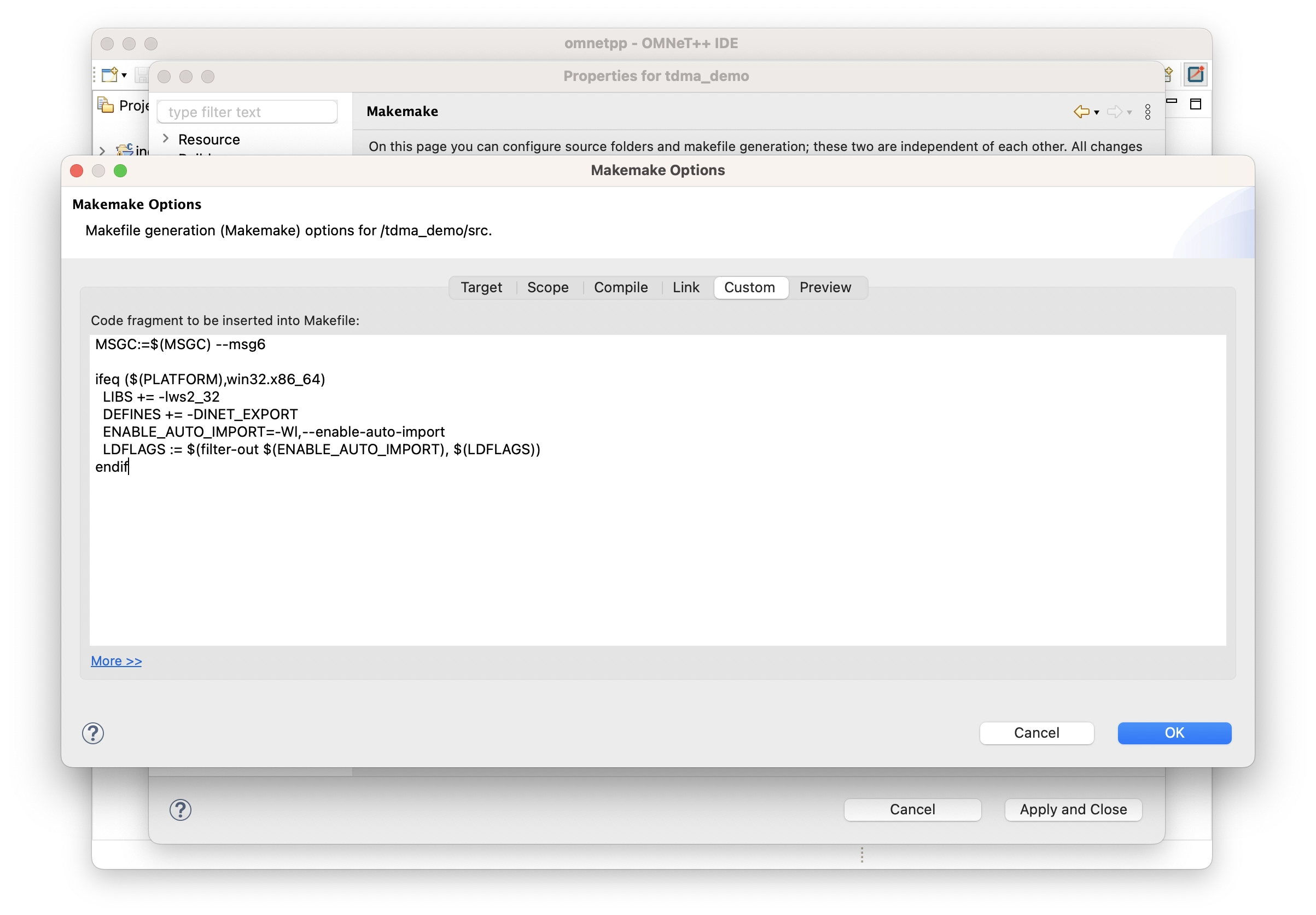
OMNeT++ Project Makemake Custom Settings The code in “Custom” section is as follow:
1 2 3 4 5 6 7 8 9MSGC:=$(MSGC) --msg6 ifeq ($(PLATFORM),win32.x86_64) LIBS += -lws2_32 DEFINES += -DINET_EXPORT ENABLE_AUTO_IMPORT=-Wl,--enable-auto-import LDFLAGS := $(filter-out $(ENABLE_AUTO_IMPORT), $(LDFLAGS)) endif